Photo Editor Online Guide for Beginners (2026 Guide)
Online photo editors let you fix, crop, and polish photos from any browser, but the best choice depends on whether you need quick social posts or serious editing.
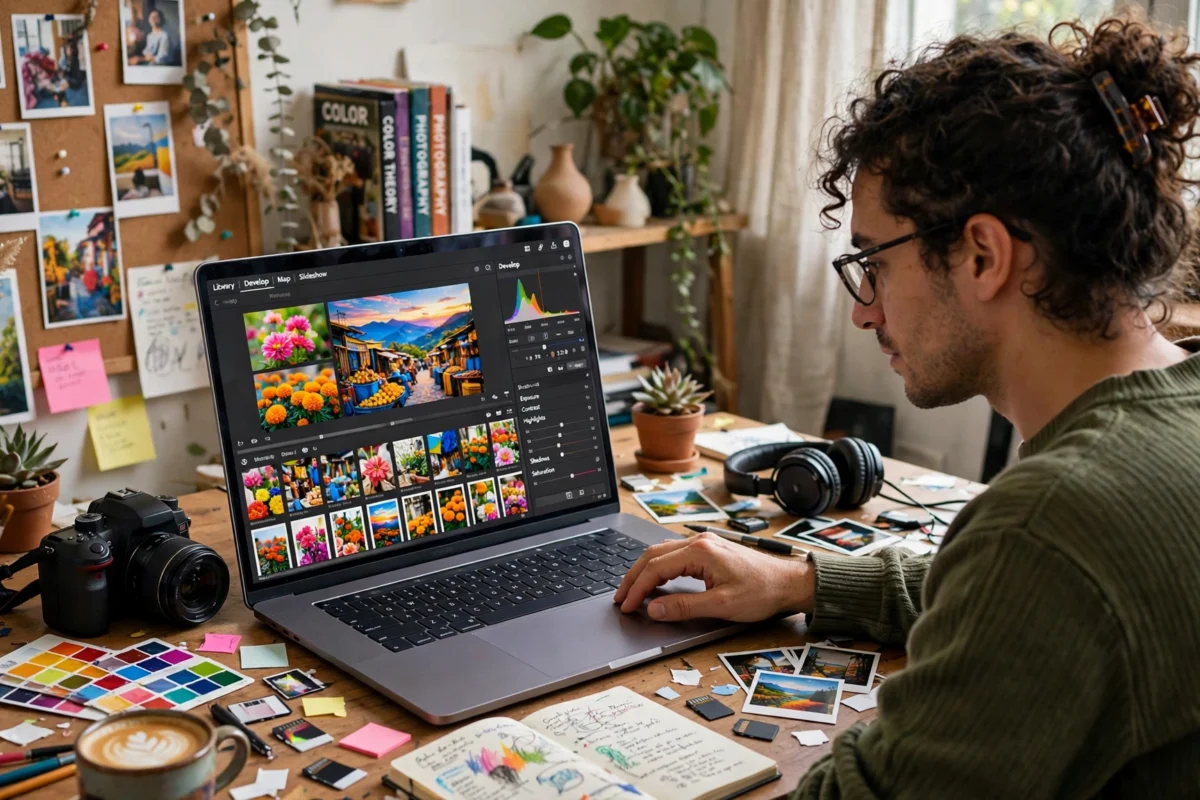
Photo Editor Online Guide for Beginners (2026 Guide)
The short version: an online photo editor is a website or web app that lets you edit photos in your browser without installing software. For quick jobs, such as cropping for social media, fixing brightness, or removing a distraction, a good online editor is all most people need. For deep retouching, large print files, or working offline, desktop software still has the edge. The trick is matching the editor to the job: pick a simple tool for simple edits, a powerful one for serious work, and always check what happens to your photos and what the free version actually includes before you invest time in learning it.
Editing photos used to mean buying expensive software and learning a complex interface. That barrier has fallen. Modern browsers are powerful enough to run serious editing tools, and many of the best online editors are free for basic work, with paid plans adding advanced features, stock photos, and higher-resolution exports. The result is that anyone with a phone or laptop can produce polished images for social media, a small business, a blog, or a family album. The downside is choice overload: dozens of editors promise the same things, and their free versions differ wildly in what they actually let you do.
This guide cuts through that noise. It explains what online editors can and cannot do, how to choose one for your needs, how free and paid plans really compare, and a simple workflow that produces consistent results. It avoids naming one winner, because the best editor for a social media manager is not the best editor for a photographer preparing prints, and a recommendation that ignores that difference is not much use to either of them.
What an Online Photo Editor Can Do
Most online editors cover the same core jobs. Cropping and resizing top the list, since almost every photo needs to fit a specific frame, whether that is a social media post, a website banner, or a print size. Exposure and colour adjustments come next: brightness, contrast, saturation, and white balance can rescue a dull photo or set a mood. Filters and presets offer one-click looks, which are handy for a consistent feed but should be used with restraint, since heavy filters age quickly and can make skin tones look unnatural.
Beyond the basics, many editors now offer background removal, object removal, text overlays, templates for social posts, and simple retouching tools for skin and blemishes. Some include artificial intelligence features such as automatic enhancement, sky replacement, or upscaling, which can save time but should be checked carefully, since automated tools sometimes invent details or smooth skin into a plastic look. Layers, masks, and selective adjustments mark the step up to serious editing, and only the more powerful online editors offer them in full. If you need those tools regularly, that distinction matters more than any filter collection.
What online editors generally do less well is heavy-duty work: editing very large raw files, batch-processing hundreds of photos, or working without an internet connection. Browser tools depend on your connection speed and your computer’s memory, and a slow connection turns a quick edit into a frustrating wait. For those jobs, desktop software remains the practical choice, and many photographers use both: an online editor for quick shares and a desktop tool for final, high-quality work.
Step 1: Define What You Edit and Where It Goes
Start with your output. Social media posts need correct sizes, bold text, and punchy colour. Blog images need clean, fast-loading files. Product photos need accurate colour and clean backgrounds. Prints need high resolution and careful sharpening. Write down your three most common outputs, because they decide which features matter. A social media creator needs templates and text tools. A product seller needs background removal and batch export. A family archivist needs simple, reliable editing and easy printing.
Step 2: Shortlist Two or Three Editors and Test Them
Pick a shortlist based on your outputs, then test each one with the same photo. Crop it, fix the exposure, add text if relevant, and export it at the size you need. Time the whole process and look at the result on the device where it will be seen, not just on your editing screen. A tool that feels fast and obvious on the first photo is usually the right one, because you will use it far more than a powerful tool you avoid opening.
Step 3: Check the Free Plan Before You Commit
Open the pricing page and check what the free plan actually includes: export resolution, watermarks, daily limits, and whether your projects are saved. Some free plans export at full quality with no watermark, which is generous. Others add a watermark, cap exports at low resolution, or limit you to a handful of saves per month. Discovering these limits after an hour of editing is annoying, so check first and choose a paid plan only if the free limits genuinely block your work.
Step 4: Learn a Simple, Repeatable Workflow
Good editing is mostly a consistent order of operations, not talent. Start with cropping, then exposure and colour, then retouching, then text or graphics, and finish with sharpening and export. Doing steps in the same order each time keeps results consistent and makes it easy to spot what went wrong when a photo disappoints. Save presets for looks you reuse, and keep originals untouched so you can always start again.
How to Choose: Features That Actually Matter
| Feature | Why it matters | Who needs it most |
|---|---|---|
| Crop and resize presets | Right size for each platform, no guessing | Social media creators |
| Exposure and colour controls | Fix dull or badly lit photos | Everyone |
| Background removal | Clean product and profile photos | Sellers and small businesses |
| Layers and masks | Edit one part without affecting the rest | Serious editors |
| Text and templates | Fast social posts and marketing graphics | Content creators |
| Full-resolution export | Sharp prints and professional use | Photographers and sellers |
| Cloud saving | Pick up editing on another device | People who switch devices |
Features you can safely ignore at first include advanced colour grading, complex compositing, and most artificial intelligence gimmicks. They are fun to try, but they rarely improve everyday photos, and they can distract from the fundamentals: a well-cropped, well-exposed photo with natural colour beats a heavily filtered one every time. As your skills grow, revisit advanced features with a specific purpose in mind, rather than applying them because they exist.
Free Versus Paid: What You Really Get
Free plans are genuinely useful for casual editing, and many people never need to pay. They typically include cropping, basic adjustments, filters, and standard-resolution export, which covers social media and personal sharing. Paid plans usually add full-resolution export without watermarks, background removal, premium templates and stock photos, cloud storage, and priority processing. Whether that is worth paying for depends on volume and purpose: a business posting daily needs reliability and full resolution, while a casual user posting weekly probably does not.
Before paying, check three things. First, whether the subscription is monthly or annual and what cancelling actually involves. Second, whether your projects and presets survive if you cancel, since losing a library of work is a real cost. Third, whether the paid features solve a problem you actually have, rather than merely sounding impressive. A free editor plus a one-off purchase elsewhere sometimes beats a subscription you forget to use, and many creators overpay for tools they open twice a month.
Also watch for editors that lock basic export behind a paywall or add watermarks to free exports. That is a legitimate business model, but it should be clear up front. If a tool hides its limits until export time, treat that as a sign of how it will treat you as a customer, and consider a more transparent alternative.
Editing Portraits Without Overdoing It
Portrait editing is where restraint matters most. The goal is to help someone look like themselves on a good day, not like a different person. Start with exposure and colour, then remove temporary distractions such as a spot or a stray hair, and soften skin only lightly if at all. Over-smoothing removes texture and makes skin look artificial, which viewers notice even if they cannot explain why. Eyes deserve care too: a slight brightening helps, but whitening them aggressively looks unnatural.
For group photos, check everyone, not just the person in the centre. Backgrounds matter as well: a distracting object behind a head can ruin an otherwise good portrait, and most online editors can remove small distractions cleanly. When in doubt, show the edit to someone else before posting. Fresh eyes catch over-editing faster than the editor, who has been staring at the same face for twenty minutes.
Editing on Your Phone
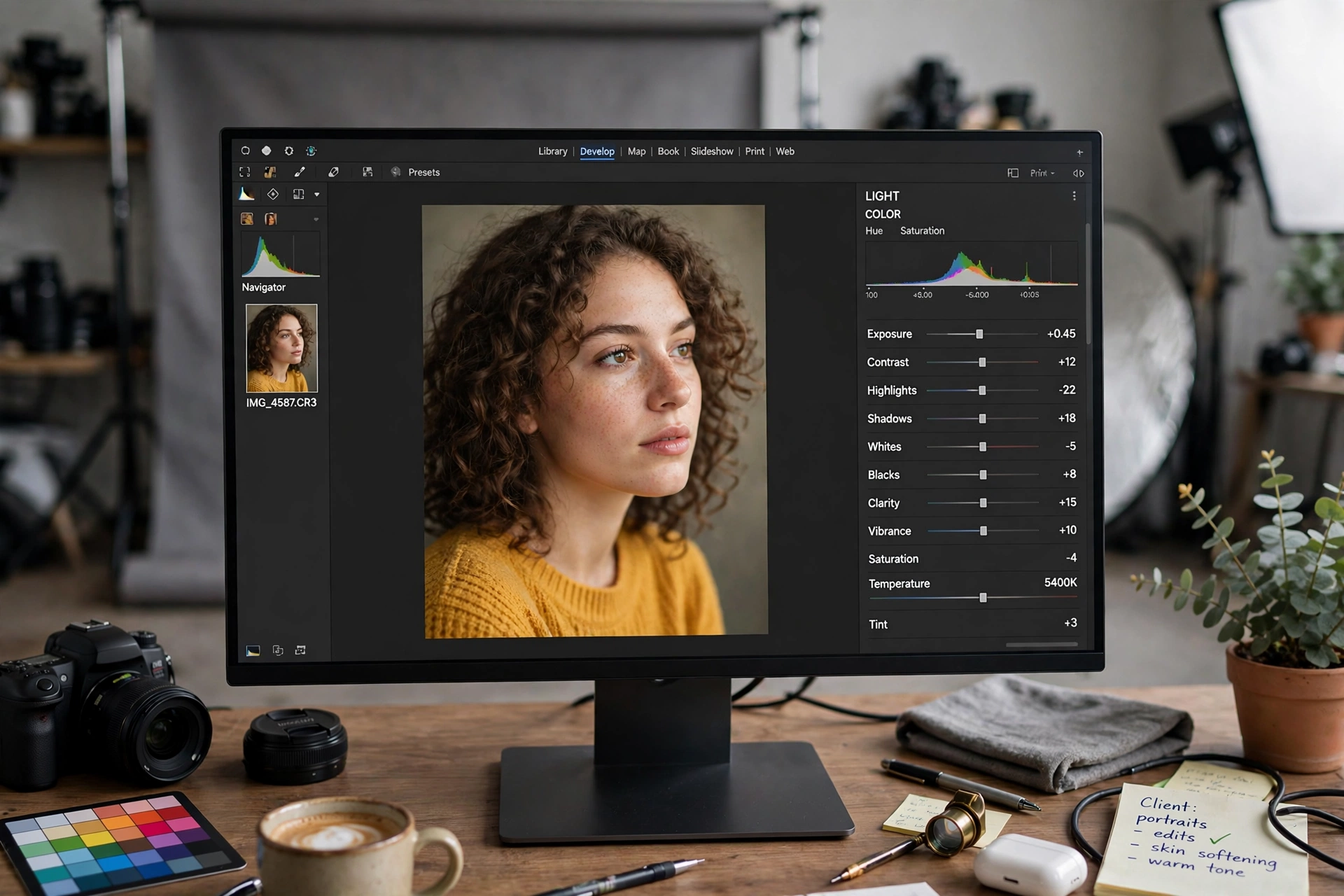
Phone-based online editors are convenient for quick social posts, and many people do all their editing on a phone. The workflow is the same, but the small screen makes fine retouching harder and colour judgement less reliable, since phone screens vary in brightness and colour. For important photos, do a final check on a larger screen before publishing, and avoid editing in bright sunlight, which makes screens hard to read and colours hard to judge.
Storage is another phone consideration. Editing apps and browsers cache large files, and a phone can fill up quickly during a holiday. Back up originals to cloud storage or a computer regularly, and delete working copies you no longer need. If your phone struggles with a large file, transfer it to a computer rather than fighting the small screen and limited memory.
Exporting, Sharing, and Printing
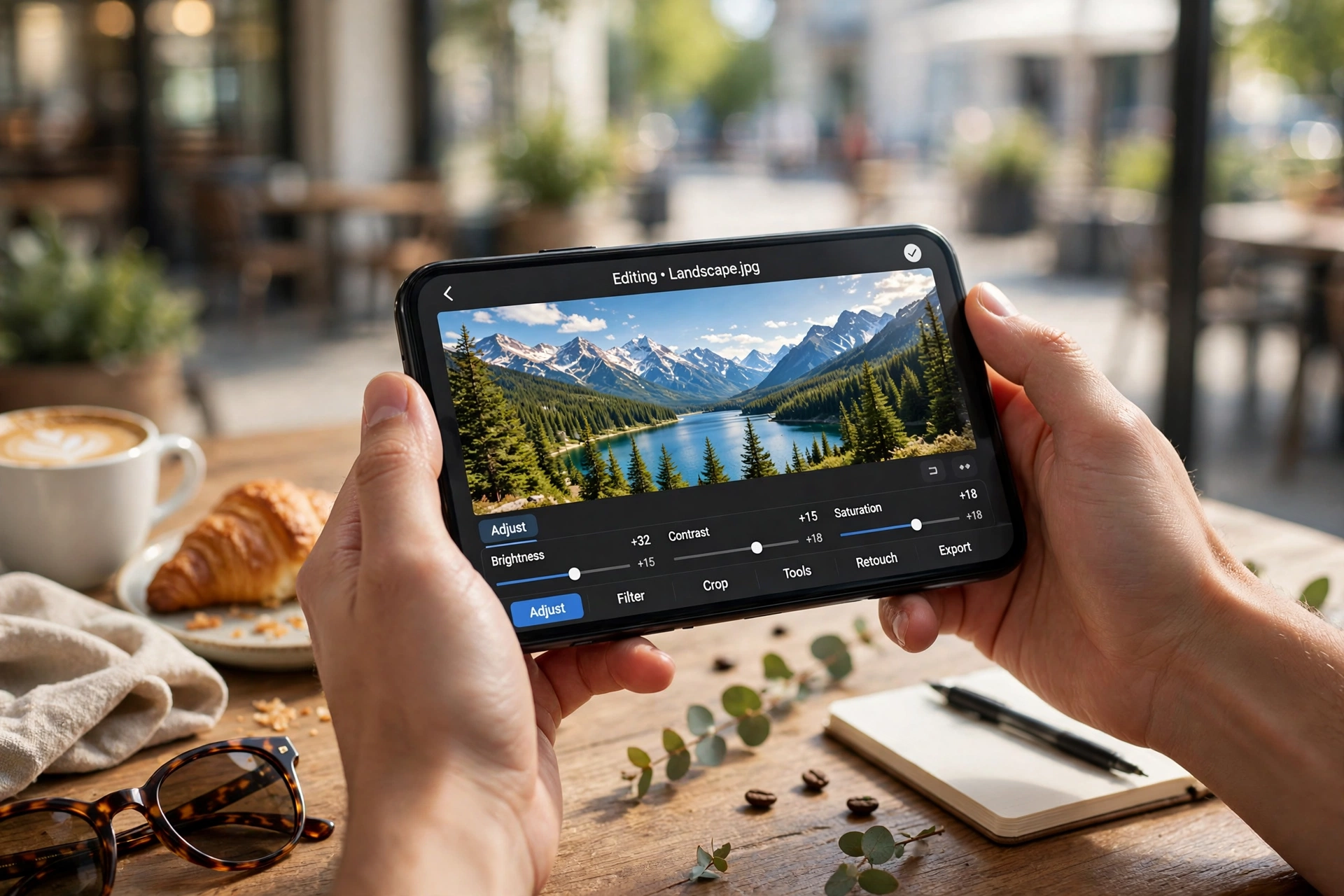
Export settings decide how your edited photo looks to everyone else. For social media, export at the platform’s recommended size in a common format, and keep file sizes reasonable so uploads are fast. For websites, balance quality against loading speed: a slightly smaller file that loads quickly beats a huge file that delays the page. For printing, export at the highest resolution available and check the print size, since a photo that looks sharp on screen can look soft when printed large.
Colour deserves a final check before printing. Screens and printers render colour differently, and a photo edited on a bright, saturated phone screen may print darker or duller than expected. If printing matters, order a small test print first, especially for important photos such as wedding or family portraits. It costs little and prevents disappointment with a large order.
Privacy and Your Photos
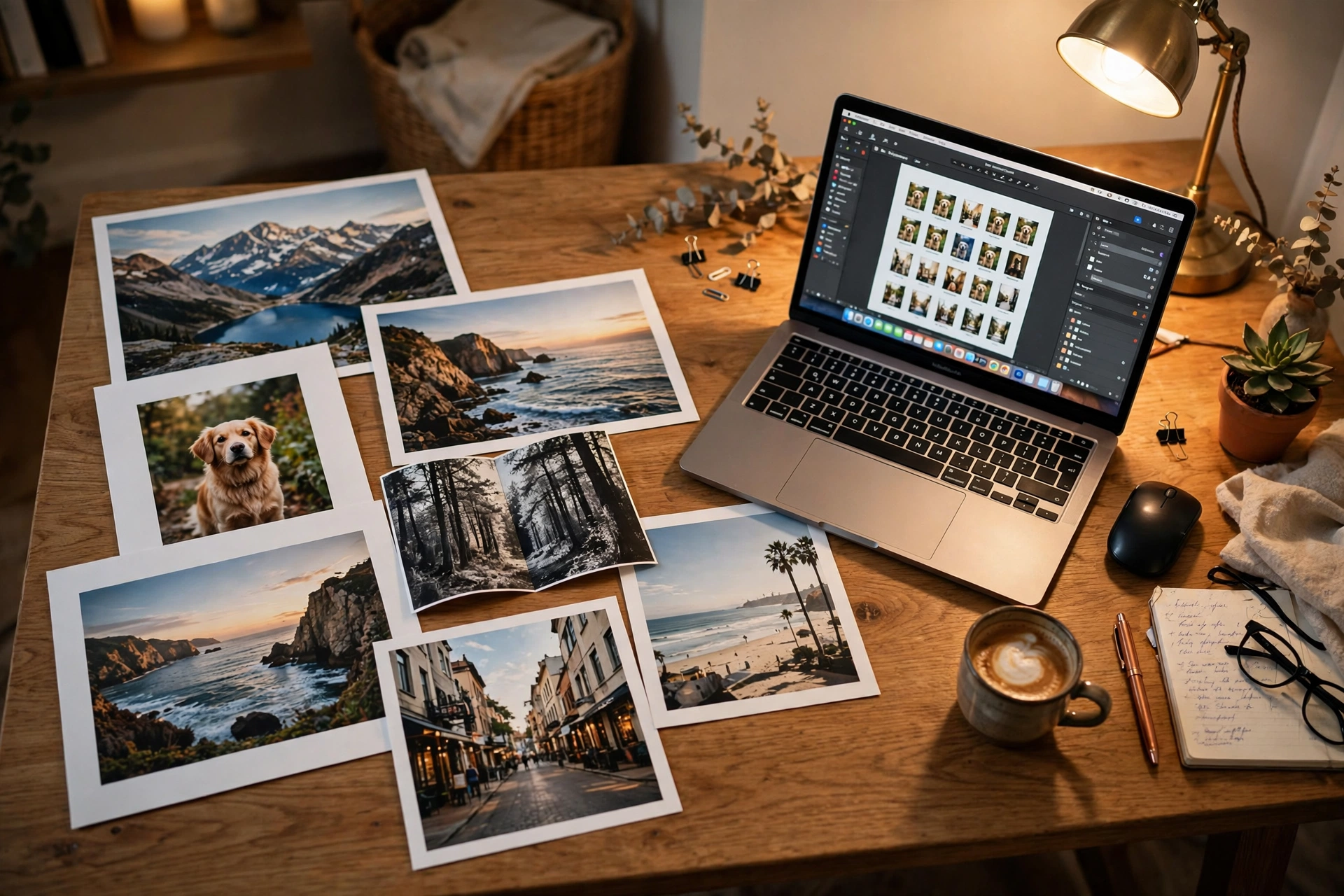
Online editors handle your photos on their servers or in your browser, and the difference matters. Browser-based editors that process locally keep your photos on your device, which is best for privacy. Server-based editors upload your photos, and you should check how long they are stored, whether they are used for any other purpose, and how to delete them. For personal or family photos this may not worry you, but for client work, children’s photos, or anything sensitive, it should.
A simple rule helps: if you would not post the photo publicly, check the editor’s privacy policy before uploading it, and prefer a tool that processes locally or deletes uploads promptly. For professional work, check your contracts too, since some clients restrict uploading their images to third-party services. When in doubt, use a desktop editor for sensitive work and an online editor for everyday sharing. For a similar privacy-first approach to other online tools, the practical guides at 9bio and homewaterinsights apply the same check before uploading.
A Simple Workflow That Works Every Time
- Back up the original before you edit anything.
- Crop to the shape and size your output needs.
- Fix exposure, then white balance, then colour.
- Remove distractions and retouch lightly.
- Add text or graphics only if the output needs them.
- Sharpen gently and export at the right size.
- Check the exported file on the device where it will be seen.
Following the same order each time builds speed and consistency. You will stop wondering what to do next, and your photos will start to look like they belong together, which matters more for a feed, a shop, or a blog than any single dramatic edit.
Common Mistakes to Avoid
- Editing the only copy of a photo and losing the original.
- Over-filtering until skin tones and colours look unnatural.
- Exporting at low resolution and discovering the problem after printing.
- Paying for a subscription before checking the free plan’s limits.
- Uploading sensitive photos without checking storage and deletion policies.
- Judging colour on a phone screen in bright sunlight.
FAQs
Do I need to install software to edit photos online?
No. An online photo editor runs in your browser, so you can edit on any computer without installing anything. You only need a reasonably fast internet connection and a modern browser.
Are free online photo editors good enough?
For most everyday editing, yes. Free plans cover cropping, exposure, colour, and filters well. You may need a paid plan for full-resolution export, background removal, or premium templates.
Can I edit photos on my phone with an online editor?
Yes, most online editors work on phones, and many are designed for it. For fine retouching or print work, check the result on a larger screen before publishing.
Will an online editor handle raw camera files?
Some powerful online editors can, but many are designed for standard image formats. For heavy raw processing, desktop software is usually faster and more capable.
Is it safe to upload my photos to an online editor?
It depends on the service. Prefer editors that process locally in your browser or that delete uploads promptly and state their policy clearly. Avoid uploading sensitive or client photos to services with vague policies.
What size should I export for social media?
Use each platform’s recommended size for the post type, since sizes change over time. As a rule, export sharp, correctly cropped images at the platform’s suggested dimensions rather than uploading oversized originals.
The Bottom Line
An online photo editor is the right tool for most everyday photo work, provided you choose it for your actual outputs rather than its longest feature list. Keep the workflow simple, respect the original, check free-plan limits before committing, and think about privacy before uploading anything sensitive. Do that, and your photos will look consistently better without a complicated setup or a monthly bill you regret. When a job outgrows the browser, desktop software is there for it, but for the daily work of cropping, fixing, and sharing, the browser is more than enough.
Read Also: PDF to Word Converter Complete Guide (2026 Guide)
Related Stories

Rivet: Types, Uses, and How to Choose the Right One
From solid rivets in aircraft and bridges to pop rivets in DIY projects, here is how rivets work,…
Moldavite Crystal Meaning and Real vs Fake Guide
What moldavite is, where it comes from, what collectors mean by its energy, and the practical checks that…

Couples Therapy What to Expect First Session (2026 Guide)
A calm, honest walkthrough of the first couples therapy session — the structure, the questions, the ground rules,…
1 response