PDF to Word Converter Complete Guide (2026 Guide)
Converting a PDF to Word is easy when you pick the right method, but formatting, scanned pages, and privacy all affect the result — this guide covers each one.
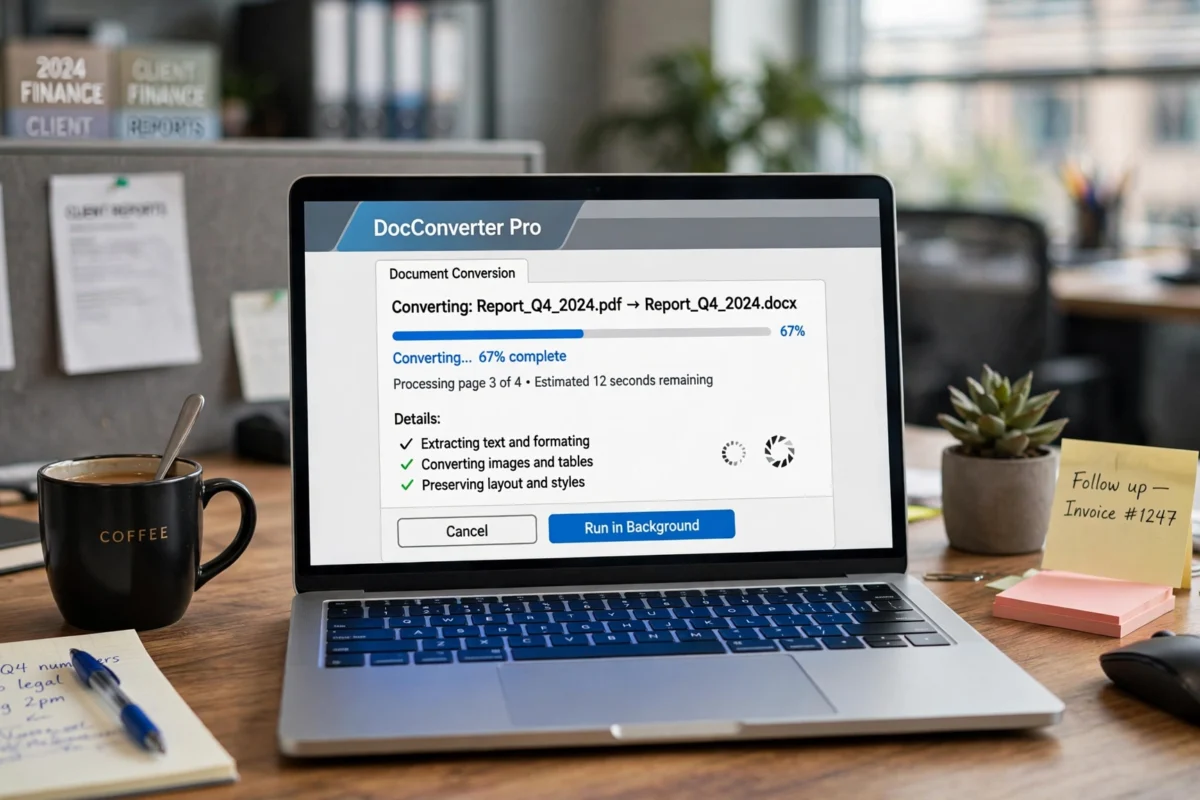
pdf to word converteruecht guide.
PDF to Word Converter Complete Guide (2026 Guide)
The short version: the best way to convert a PDF to Word depends on the kind of PDF you have. If the PDF contains real text, a desktop word processor or a reputable online converter will usually give you a clean, editable document in under a minute. If the PDF is a scanned image of a printed page, you need a tool with text recognition, and you should expect to proofread the result. If the document is sensitive, convert it offline rather than uploading it to a website. Pick the method that matches your file, check the formatting afterwards, and you will save yourself most of the frustration people associate with PDF conversion.
PDFs are designed to look the same everywhere, which is exactly why they are awkward to edit. A PDF stores a page as a fixed layout: where each word sits, which font it uses, and how the page is drawn. A Word document stores content that flows: text reflows when you edit it, styles control headings, and tables can be resized. Converting between the two means translating a fixed picture of a page back into flowing content, and that translation is never perfect. Understanding that single idea explains almost every formatting glitch you will ever meet, and it tells you why a quick check after conversion matters more than the choice of tool.
This guide covers the methods that actually work, compares online converters with desktop software, explains how to fix the most common formatting problems, and covers scanned documents and privacy. It avoids naming a single winner, because the right tool depends on your file, your device, and how sensitive the document is. Instead, it gives you a decision process you can reuse for any PDF, from a one-page letter to a hundred-page report.
Why PDF Conversion Goes Wrong
Most conversion problems fall into a few familiar patterns. Text can come out in the wrong order, especially in documents with multiple columns, sidebars, or footnotes, because the converter has to guess the reading order. Tables can split or merge, since a PDF draws table lines as graphics rather than storing a real table structure. Fonts can change if the original font is not available on your computer, which shifts spacing and can push text onto extra pages. Images can land in odd places or lose their captions. Headers, footers, and page numbers sometimes appear as stray text in the middle of the document.
None of this means the converter is broken. It means the PDF did not contain the structure the converter needed, so it had to guess. The practical response is to convert, then spend five minutes checking the result against the original: skim the headings, check tables, look at images, and fix anything that moved. For short documents that check takes minutes. For long reports, it is still faster than retyping, but budget real time for it and do not promise a client a perfect conversion without looking.
Step 1: Identify What Kind of PDF You Have
Open the PDF and try to select a sentence with your mouse. If you can highlight the text and copy it, the PDF contains real text and will convert well. If you cannot select anything, or selection draws a box around a whole page image, the PDF is scanned and needs text recognition. This one test decides your whole approach, so do it before choosing a tool. Also note the length, whether it has tables or complex layout, and whether it contains anything sensitive, since each factor changes the best method.
Step 2: Choose Your Conversion Method
For everyday documents with real text, start with the word processor you already have. Modern versions of Microsoft Word can open a PDF directly and convert it to an editable document, and Google Docs can do the same through its file opening options. These routes keep your file on your own computer or your own account, which is better for privacy, and they cost nothing extra if you already use the software. For scanned documents, use a tool that explicitly offers text recognition, whether that is a desktop application, a scanner app, or a reputable online service with that feature clearly stated.
Online converters are the fastest option for a quick, non-sensitive file: upload, convert, download, done. Their quality varies, and the best ones preserve tables and layout better than the worst, so try two with the same file if the first result disappoints. Desktop tools, including dedicated PDF software, generally handle complex layouts better and work offline, which matters for large files and sensitive documents. Free tools are fine for occasional use; paid tools earn their keep if you convert documents weekly or need batch conversion and better table handling.
Step 3: Convert and Save a Copy of the Original
Before converting, save the original PDF somewhere safe and work on a copy. Conversion is a one-way process in practice: once you have edited the Word file, you cannot reliably reconstruct the original PDF from it. Convert to a new Word file, save it immediately under a clear name, and keep the PDF alongside it so you can compare the two. If the converter offers options, such as keeping images or recognising tables, leave the defaults on for your first attempt and only change them if the result disappoints.
Step 4: Check and Fix the Result
Open the converted document and compare it page by page with the PDF, at least for headings, tables, and images. Fix reading order first, since jumbled text is the most confusing problem for a reader. Then fix tables, then styles and fonts, then images. Do not start by polishing wording: structural fixes can move text around, and you will waste effort editing paragraphs that later shift. Once the structure is right, proofread the text itself, because converters can misread characters, especially in unusual fonts or low-quality scans.
Comparing the Main Conversion Methods
| Method | Best for | Watch out for |
|---|---|---|
| Word processor (open PDF directly) | Everyday text documents, privacy | Complex layouts may need cleanup |
| Online converter | Quick one-off conversions | Privacy, file size limits, ads |
| Dedicated PDF software | Complex layouts, batch work, tables | Cost, learning curve |
| Text recognition (OCR) tool | Scanned pages and photos of text | Proofreading needed, handwriting poor |
| Mobile scanner app | Paper documents on the go | Quality depends on the photo |
There is no single best converter for everyone. A student converting lecture notes needs speed and simplicity. A solicitor converting a contract needs accuracy and privacy. An office worker converting a monthly report needs reliable tables. Judge a tool on the documents you actually convert, and test it with a representative file before relying on it for something important. A tool that handles a simple letter beautifully can still struggle with a forty-page report full of tables, and vice versa.
Fixing Formatting After Conversion
Most post-conversion fixes are quick once you know where to look. If text appears in separate boxes rather than flowing paragraphs, select it and clear the text-box formatting or paste it as plain text and reapply styles. If headings look wrong, apply your heading styles rather than manually changing font sizes, because styles keep the document consistent and make a table of contents possible. If a table has split into pieces, check for merged cells and hidden rows, and rebuild the table only for the affected section rather than the whole document.
Fonts deserve a short note. If the converted document uses a font you do not have, your word processor substitutes a similar one, which changes spacing and can alter page breaks. For documents you will share, switch to a common font and check the page count against the original. For documents that must look identical, export the finished Word file back to PDF and compare it with the original side by side. Images need a similar check: make sure each image sits with its caption and has not drifted to another page, and resize any image that now dominates the page.
Page numbers, headers, and footers often need attention. Converters sometimes treat a running header as body text on every page, creating repeated lines through the document. Search for the repeated phrase, delete the stray copies, and set up a proper header instead. The same applies to footers and watermarks. Five minutes spent on this step makes the difference between a document that looks converted and one that looks authored.
Scanned PDFs and Text Recognition
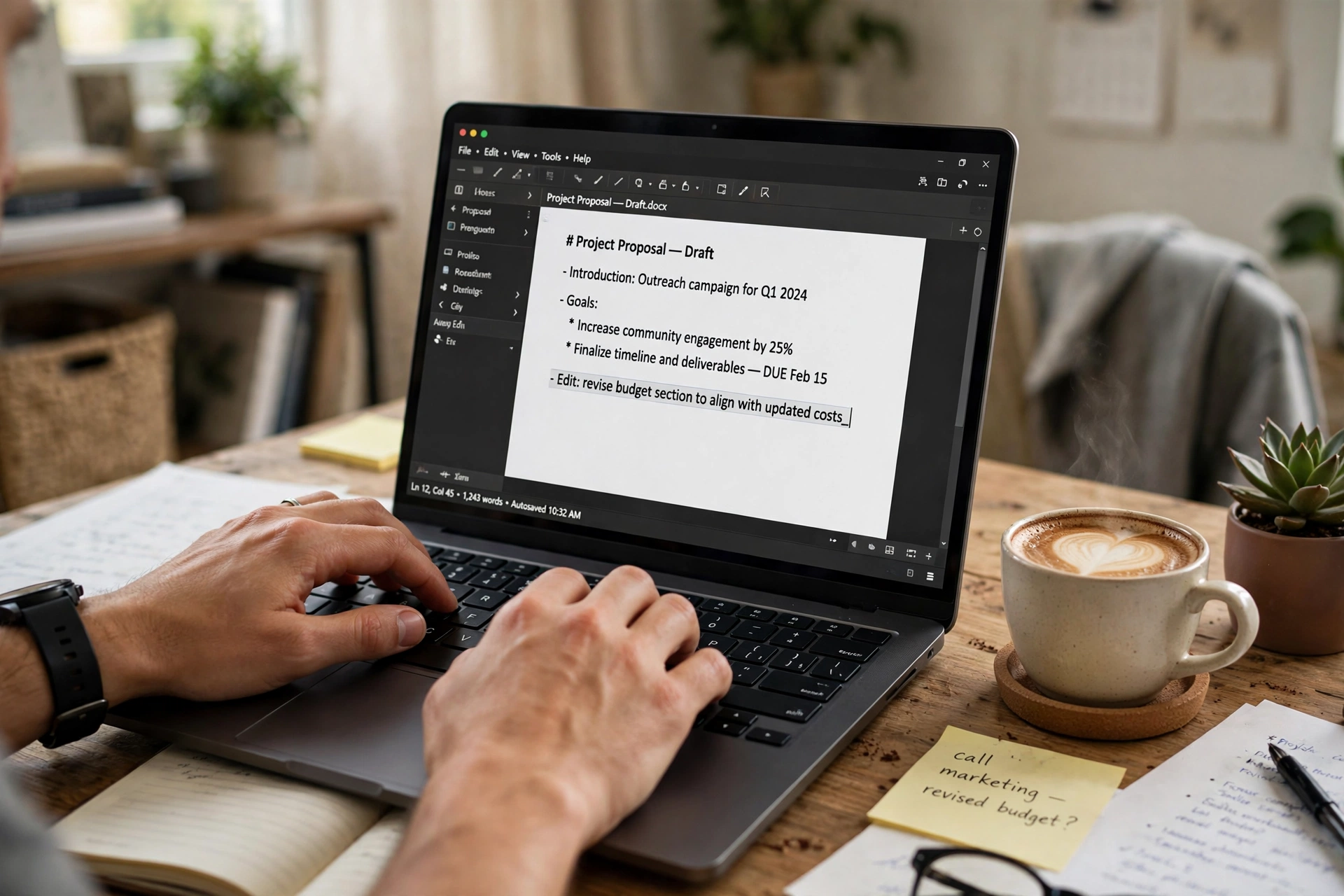
Scanned PDFs are a different job. The file contains pictures of pages, not text, so the converter must first recognise the characters in each image, a process called optical character recognition. Modern recognition is very good on clean, printed text, and it handles common fonts and languages well. It struggles with handwriting, faint print, skewed pages, and unusual layouts, and it can confuse similar characters, such as the number one and the letter l, or zero and the letter O. Expect to proofread scanned conversions carefully, especially numbers, names, and dates.
Quality of the scan matters more than the choice of software. If you are scanning yourself, use a flat scanner or a good scanner app, keep pages straight, and scan at a decent resolution rather than the lowest setting. If you received a poor scan, try improving contrast before converting, and accept that some pages may need manual correction. For long scanned books or archives, consider converting in batches and proofreading as you go, rather than converting everything and facing a mountain of corrections at the end.
Converting on a Phone or Tablet
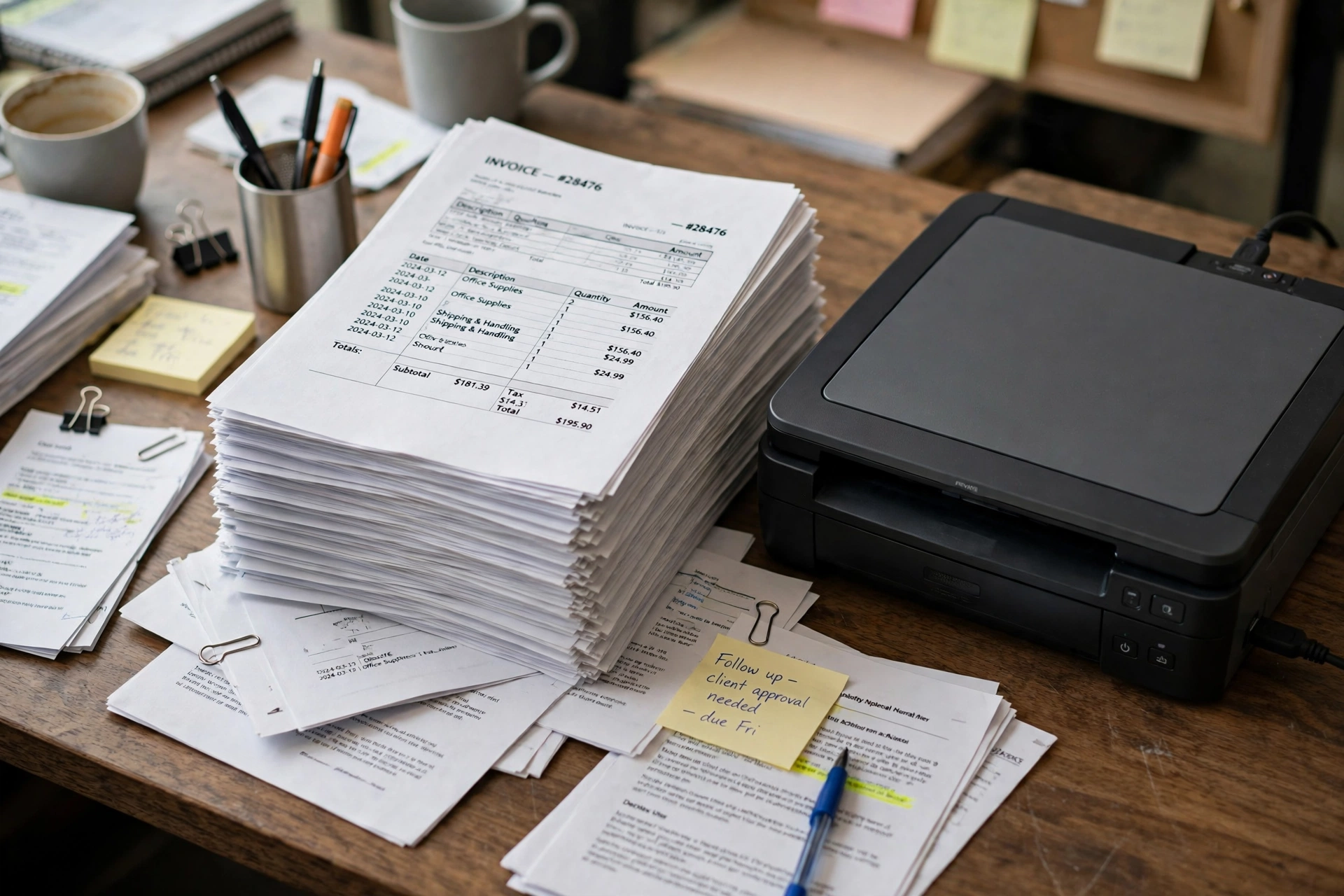
Mobile conversion is handy for a single document when you are away from a computer, and several reputable apps and mobile-friendly websites handle it well. The workflow is the same: upload or open the PDF, convert, check the result, and save it. The main limits are screen size, which makes checking tables harder, and file handling, since moving files between apps on a phone can be fiddly. For anything longer than a few pages, or anything with tables, a computer is still the better tool, and it is worth waiting until you have one rather than wrestling with a long document on a small screen.
On mobile, watch out for apps that require an account or subscription for a single conversion, and check what happens to your file after conversion. A legitimate tool states its retention policy clearly. If a free app is vague about storage, do not use it for anything personal or work-related.
Privacy: What to Check Before Uploading
Privacy is the most overlooked part of PDF conversion. When you upload a document to an online converter, you are sending a copy to someone else’s server, and you should know what happens to it. Reputable services delete files automatically after a short period and state that clearly, use encrypted connections, and do not use your documents for other purposes. Less reputable ones may keep files indefinitely, show them to third parties, or bury broad rights in their terms.
A simple rule covers most cases: if the document contains personal data, financial details, medical information, legal material, or anything covered by a confidentiality duty, convert it offline with desktop software instead of uploading it. If you must use an online tool for a sensitive file, remove or redact the sensitive parts first, or split the document so only the non-sensitive pages are uploaded. For work documents, check your employer’s policy first, since many organisations restrict uploading company files to external services, and a breach can be a disciplinary matter even when the conversion itself worked perfectly.
For readers weighing online tools against offline options in other areas too, the practical approach is the same: check what happens to your data before you hand it over. The buying and safety guides at 9bio and adailyinsight360 apply that test to everyday online services in a similar way.
Free Versus Paid Converters
Free converters suit occasional use: a few pages, no sensitive data, and a willingness to accept ads or a daily limit. Paid tools suit regular use: larger files, batch conversion, better table handling, offline working, and support when something goes wrong. The middle ground is your existing word processor, which is free if you already own it and handles most everyday conversions well. Before paying, test the free version with your hardest document, not your easiest one, and check whether the paid version actually improves that document or merely removes limits.
Be wary of tools that demand payment before showing any result, or that add watermarks to converted files unless you pay. A reputable converter shows you the result or at least a preview before asking for money, and states its limits up front. If a site feels pushy, close it and try another: there are plenty of honest options, and no single converter is worth a risky payment.
Common Mistakes to Avoid
- Uploading a sensitive document to a random online converter without checking its privacy policy.
- Assuming a scanned PDF will convert like a text PDF, then skipping proofreading.
- Deleting the original PDF before checking the converted document.
- Editing wording before fixing structure, then redoing the work when text moves.
- Using a slow or unreliable internet connection for a large file and losing the result.
- Paying for a converter before testing it on your hardest document.
FAQs
What is the easiest way to convert a PDF to Word?
For most people, opening the PDF directly in a modern word processor is easiest, since it needs no extra website or account. For a quick one-off file, a reputable online converter is just as fast, provided the document is not sensitive.
Why does my converted document look messy?
Because a PDF stores a fixed layout, not flowing text, so the converter has to guess at structure. Tables, columns, and unusual fonts cause most problems. Fix structure first, then styles, then images, and compare against the original as you go.
Can I convert a scanned PDF to Word?
Yes, using a tool with text recognition. Clean printed pages convert well, but expect to proofread numbers, names, and dates, and accept that handwriting converts poorly.
Is it safe to use a free online PDF converter?
For non-sensitive documents, a reputable free converter with a clear deletion policy is generally fine. For personal, financial, medical, or work-confidential documents, convert offline instead.
Will conversion keep my tables and images?
Usually, though not perfectly. Simple tables and images transfer well, while complex tables and images with captions may need manual fixing after conversion.
Can I convert PDF to Word on my phone?
Yes, through mobile apps or mobile-friendly converter sites. It works well for short documents, but for long files or complex tables a computer gives a much easier checking and editing experience.
The Bottom Line
Converting a PDF to Word is a straightforward task once you match the method to the file: text PDFs convert easily in a word processor or online tool, scanned PDFs need text recognition and proofreading, and sensitive documents belong offline. The tool matters less than the habits around it: keep the original, check the structure, fix tables and headings before polishing words, and never upload something you would not want stored elsewhere. Follow those habits and most conversions will take minutes, not hours, and the result will look like a document you wrote, not one you rescued.
Read Also: 2025 Lincoln Corsair Complete SUV Review (2026 Guide)
Related Stories

MSU SIS Student Portal Guide for Michigan State (2026 Guide)
A plain-English guide to Michigan State University's Student Information System — what it covers, how students use it…

Alternative Learning System Meaning Explained (2026)
The Alternative Learning System, or ALS, is a parallel learning system that offers a flexible route to basic…

Reworder: Complete Step-by-Step Guide to AI Text Rewriting Tools (2026)
A reworder is an AI tool that rewrites text while keeping its meaning. This guide shows how reworders…
1 response